
In addition to individually styling events and sections, TimeStory makes it easy to apply consistent styles across your document with a few key tools.
Default Event, Section, and Image Styles
When you create a new section, event, or image, TimeStory uses the current default style for that item. Sections, point events, span events, and images each have a separate default style.
If you select a section or event, you can tell TimeStory to make that item’s style the default for its type in the context menu or under the Style menu on iPad. You can also apply the current default style to any item or items with Apply Default Style in the context menu or under the Style menu on iPad.
The three default styles are saved as part of each document or document template.
Sections with Standard Event Styles
It’s often nice for sections to define standard styles for the events within them, so they all match. To apply this, select a section and turn on “Standard Colors”:
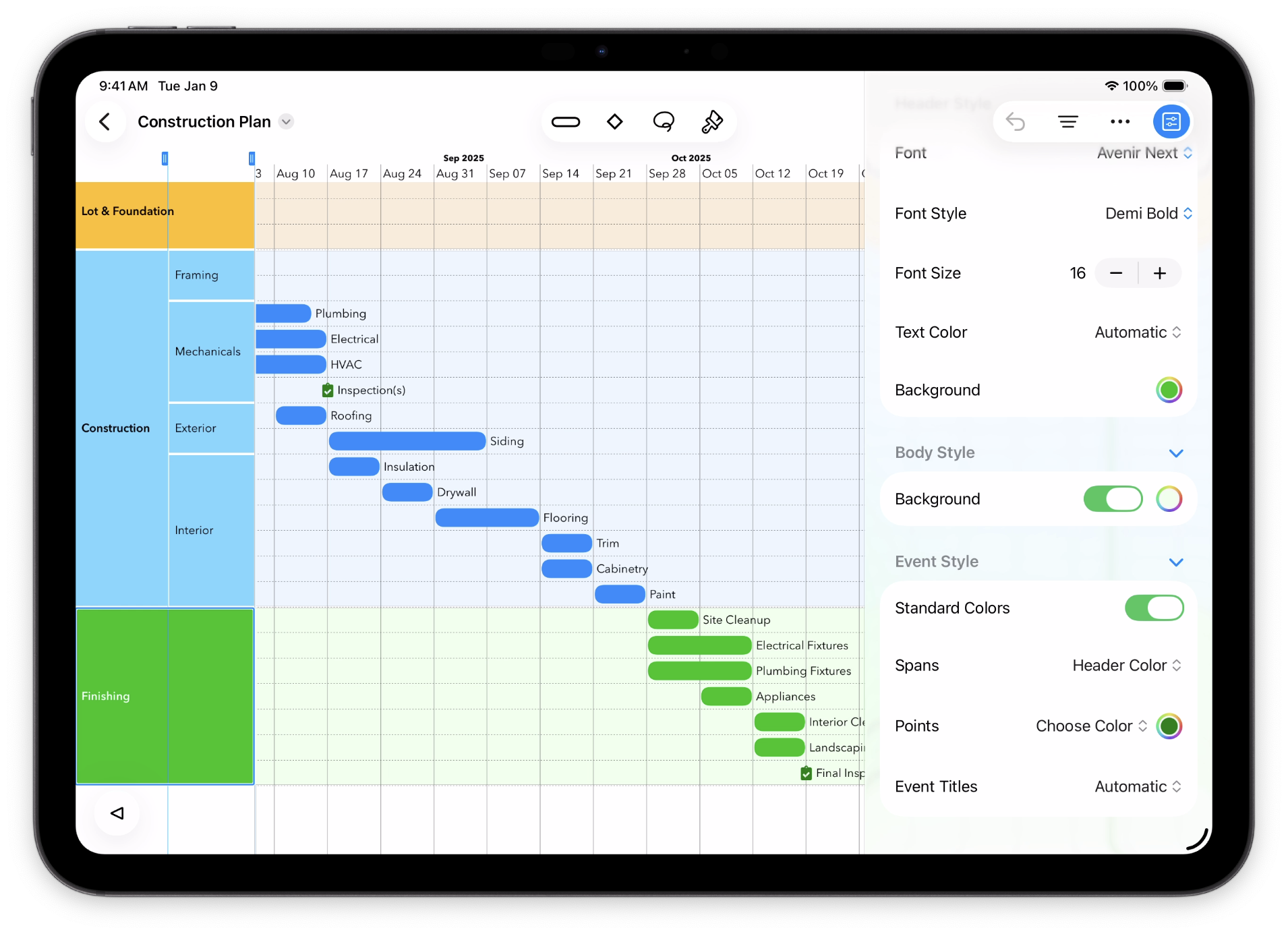
The Spans and Points fields set the standard colors for span bars and point icons within the section. The default value for these is “Header Color”, which copies the color of the section header to each event; you can also select specific colors. Event Titles sets the standard text color or all events in the section; Automatic, as always, means automatically choosing white or black based on the color behind the text.
Once this is enabled, if you select an event within that section, the corresponding color controls will be replaced by “(from section)”.
Copying and Pasting Styles
You can also manually copy one item’s style to others, using Copy Style and Paste Style from the context menu or under the Style menu on iPad (or their standard shortcuts if applicable, ⌥⌘C and ⌥⌘V).
You can only use Copy Style when a single item is selected, but you can paste a copied style to any number of items. If you paste to a different kind of item than you copied from, such as from a point event to a section, only the applicable styles copy over.