
Dates are laid out in TimeStory from left to right, and you can freely scroll around, jump to specific dates, and adjust the scale (how much of the timeline appears on screen) in multiple ways. Whether for a brief timeline measured in days or a large one spanning millennia, there are a variety of ways to get around quickly and intuitively.
Scrolling
You can freely scroll left or right, even beyond any events you’ve already placed, to view or edit different regions of time.
Scrolling left or right uses standard gestures:
- Drag with one or two fingers across the touchscreen. (Two-finger drags always scroll the timeline, but note that one-finger drags can also move events or other items around within the timeline if you tap on them first.)
- Use standard two-finger horizontal scrolling gestures on a trackpad.
- When using a mouse with a scroll wheel, hold Shift while moving the wheel to scroll left/right instead of up/down.
Adjusting the Time Scale
Time is laid out in units of year, quarter, month, week, or day. The time scale determines how wide each such unit is on screen, and thus how many units are visible at a time. Fast, simple adjustment of time scale is one of TimeStory’s key features.
(See Timeline Configuration and Time Scale for a deep dive into time units, timeline configuration, and how time scaling works.)
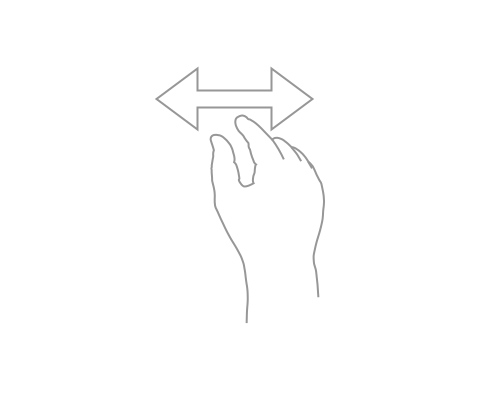
Adjust the time scale by pinching horizontally on the touchscreen.
Zooming In or Out
You can also zoom in or out, magnifying or shrinking the entire timeline. This makes text, images, headers, and everything else larger or smaller, for legibility.
Zoom in or out of the timeline document by pinching vertically.

Jumping to a Specific Date or Today’s Date
The  menu contains quick links to scroll to the earliest and latest dates in the timeline, to today’s date, or to any other date you choose.
The Dateline
Use the Dateline to see exactly what date your pointer is over, or to help point out a date while presenting a timeline. Go to Settings to enable or disable showing the Dateline under a trackpad/mouse pointer as well as any Apple Pencil with a Hover feature. (Note: This feature is not applicable for the iPhone.)
When on, the Dateline appears as a vertical line that tracks your pointer (or Apple Pencil hover), plus a tooltip-style display of the closest date (towards the bottom of the screen).
Showing Event Details
You can quickly access details like title, description, date range, and tags for any event, section, or image in the details view popover. This is useful when browsing or editing a large timeline, and lets you see everything while keeping the Inspector closed. Select an event and type the ? key to show event details.
Or, in the TimeStory Settings window, you can turn on a feature where the details popover appears whenever your pointer pauses over an event, similar to how tooltips work.
Using Bookmarks
To make it faster to jump around large timelines, you can bookmark any event for quick access. Use the “Add Bookmark” context menu to set or clear a bookmark on the selected event.
Bookmarked events show up in the Bookmarks menu. Selecting a bookmark selects that event and scrolls the timeline to make it visible. In some cases, it might even make sense to create point events purely to serve as bookmarks, to jump to known dates where an event doesn’t already exist.
(Note that if a bookmarked event is hidden, because its section is collapsed or hidden or because it’s been filtered out, that bookmark can’t be used, and will be inactive in the menu.)